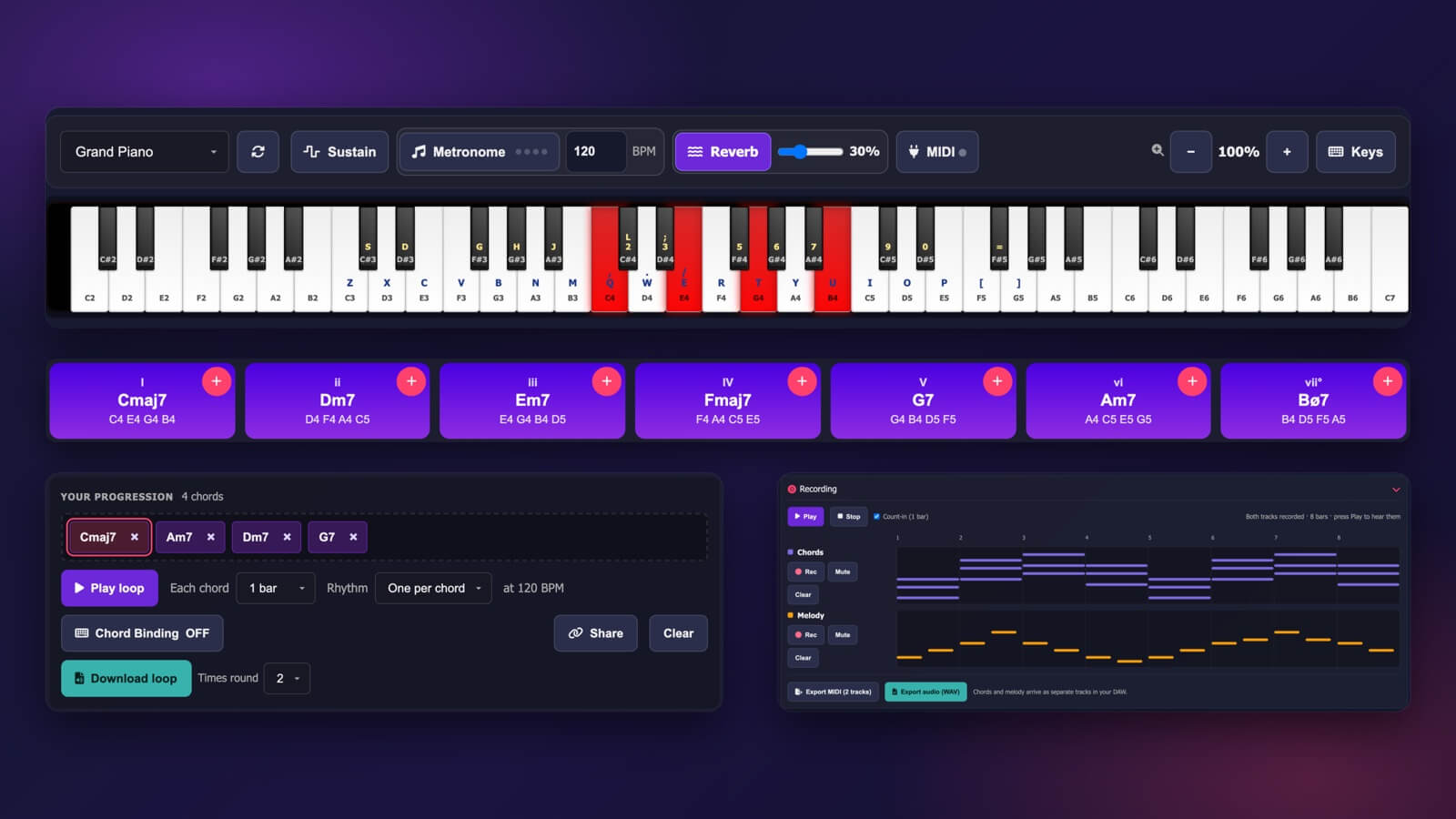
The Virtual Piano on this site does more than play notes. It finds chords that fit your key, loops them while you play over the top, records two tracks and saves your ideas as MIDI or audio. This guide goes through it from top to bottom, in the order you'll meet each part.
Open the piano in another tab and follow along. Everything here is free, runs in your browser, and needs no account.
🎹 Play your first notes
The piano loads its Grand Piano sound by itself. When the strip at the top says Loaded, click or tap any key. On a touch screen you can play several keys at once.

- Sustain keeps notes ringing after you let go, like a piano's pedal. You can also hold the Spacebar.
- Metronome starts a click. The number next to it is the tempo in BPM, and the loop and the recorder use it too.
- Reverb adds a room sound. The slider sets how much.
- The − and + buttons make the keys smaller or bigger. If the keys no longer fit the screen, octave buttons and a small map appear so you can move along the keyboard.
- The round arrow next to the sound menu reloads the sound if it ever cuts out.
On a phone, turn it sideways to see more keys. Not sure what a button does? Hover over it. Tooltip Help at the top switches those hints on and off.
⌨️ Play with your computer keyboard
Your computer keyboard works as a piano too. The letters printed on the keys show which key plays which note. Press Keys to change how it works.
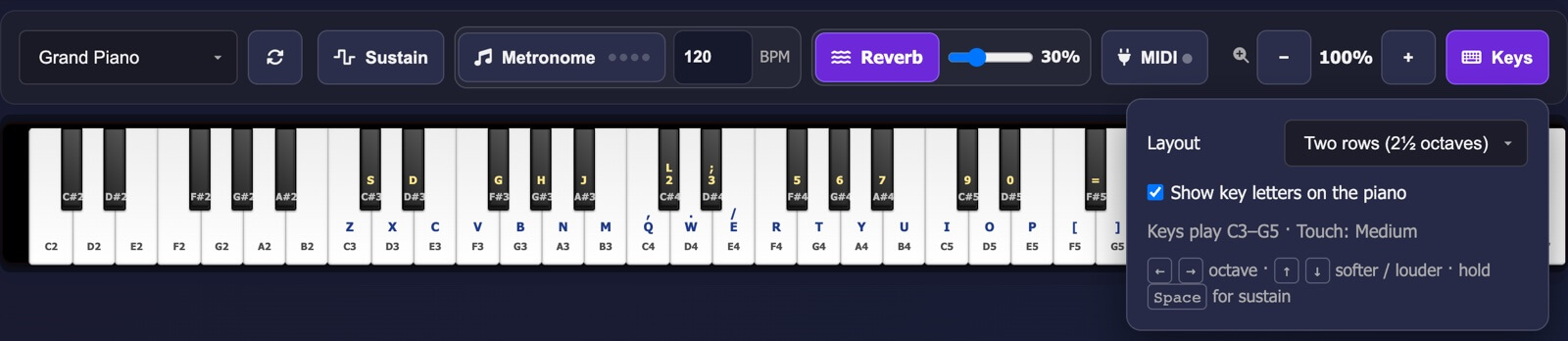
- Two rows (2½ octaves) uses two rows of letters, like a real keyboard's black and white keys. Simple (one row) uses a single row and is easier to learn.
- ← and → move up or down an octave.
- ↑ and ↓ play softer or louder.
- Hold Space for sustain.
🎛️ Use a MIDI keyboard
Plug in a USB or Bluetooth MIDI keyboard and press MIDI. Your browser asks for permission the first time. After that, everything you play shows on the on-screen keys, and your sustain pedal works as well. This works in Chrome, Edge and Firefox. Safari doesn't support MIDI keyboards in the browser.
🎵 Choose a sound
The sound menu has 26 sounds: pianos, electric pianos, organ, strings, pads, brass, woodwind and guitar. The ones marked HD, and the Concert Grand, are recorded in more detail, so they take a little longer to load the first time.
At the bottom of the menu, under Synths (built in), are three electronic sounds: Techno Stab, Deep Pad and Detroit Chord. They're made by your browser rather than played from recordings. Choose one and a Filter slider appears in the strip. Drag it left for a dark, muffled sound and right for a bright one.

🎼 Find chords that fit with the Chord Assistant
Below the keyboard, the Chord Assistant shows every chord that belongs to your key. Pick the key and the settings, then tap a chord to hear it.

- Key and Scale choose which chords you get. Major, natural minor, harmonic minor and melodic minor are all there.
- Chords switches between plain triads, 7ths and 9ths. 7ths and 9ths sound fuller and jazzier.
- Voicing decides which note sits at the bottom of each chord. Smooth (auto) picks the closest shape to the chord before, so your hands hardly move. It's the most natural-sounding choice for loops.
- Chord range plays the chords lower or higher.
- Names switches between jazz chord names and classical ones.
Each chord button shows its number in the key (I, ii, iii and so on), its name, and the notes it plays. The pink + adds that chord to your progression.
🔁 Build a progression and loop it
Chords you add appear under Your progression. Tap one to hear it on its own, or press its × to remove it. Then press Play loop and the chords go round and round while you play along on the keys.
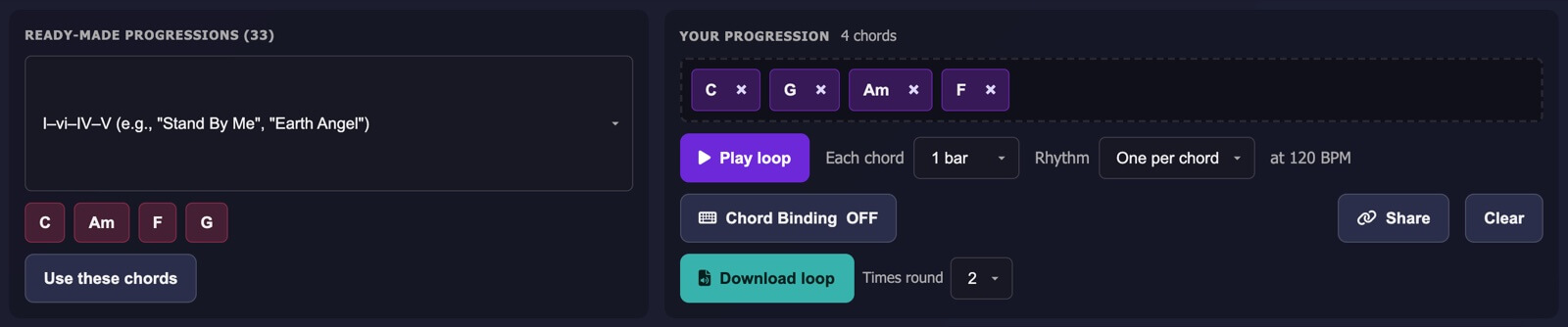
- Each chord sets how long each chord lasts: 2 beats, 1 bar or 2 bars.
- Rhythm plays each chord once, or as short off-beat stabs, the chopped rhythm you hear in techno.
- The loop plays at the tempo in the metronome box.
- Chord Binding puts your progression under your fingers. While it's on, the white keys from C4 upwards play your chords in order: C4 the first chord, D4 the second and so on.
- Clear empties the progression. It doesn't touch your recordings.
While anything plays, a pink Stop button appears in the strip at the top, so you can always stop it without scrolling.
Stuck for ideas? Ready-made progressions has 33 to choose from, in pop, rock, jazz, soul, techno and more. Pick one from the list, tap its chords to hear them, then press Use these chords to make it your progression.
⏺️ Record a song on two tracks
The Recording panel has two tracks: one for chords and one for your melody.
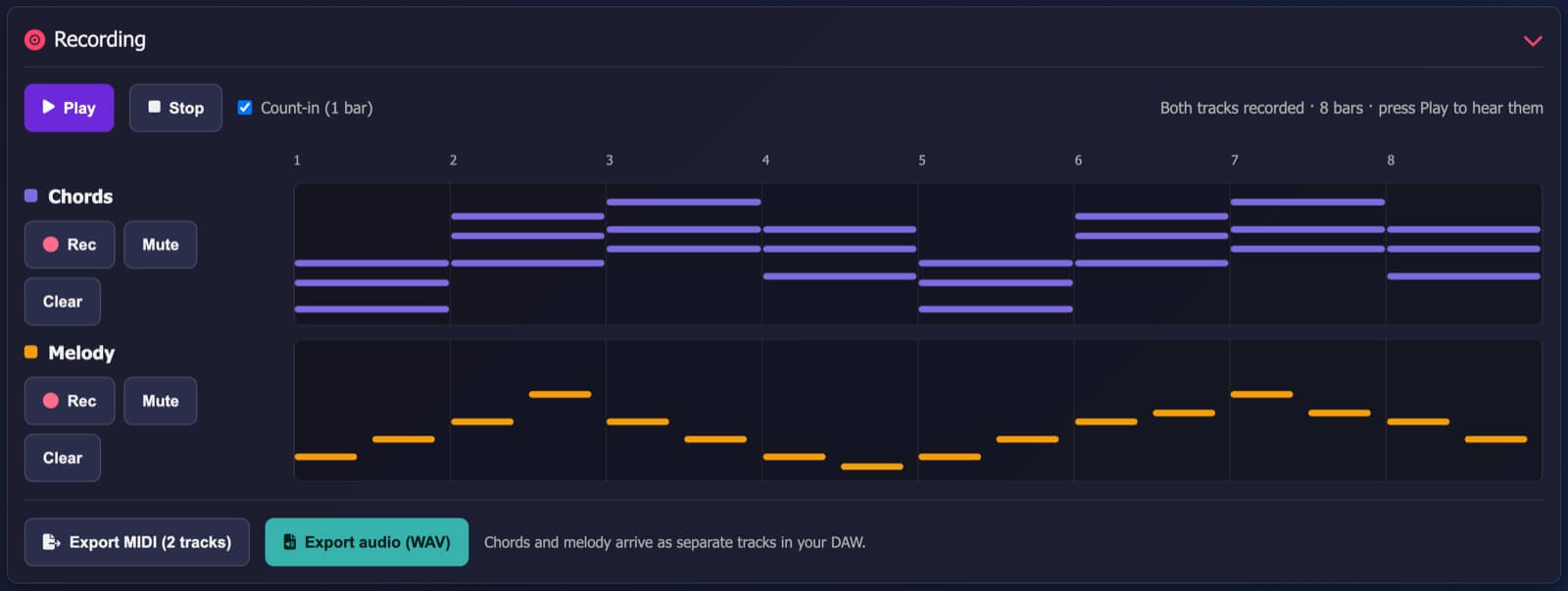
- Add the chords. Press Use my progression and choose a length of 4, 8 or 16 bars. Your progression fills the Chords track. Or press Rec on the Chords track and play the chords yourself.
- Record the melody. Press Rec on the Melody track. After a one-bar count-in, the chords play while you record your melody over them.
- Listen back. Press Play. Mute silences a track, and Clear empties it so you can try again.
You'll always hear a metronome click while recording. Untick Count-in if you'd rather start straight away.
💾 Save and share what you make
The piano doesn't keep your work when you leave the page, so save it first. There are four ways:
- Share makes a link to your progression, with its key, tempo, sound and rhythm. Anyone who opens it gets it ready to play, including you, later.
- Download loop saves your progression as a WAV audio file. Choose how many times round it plays first.
- Export MIDI (2 tracks) saves your recording as a MIDI file, with chords and melody on separate tracks for Ableton, FL Studio, Logic, Reaper and other DAWs.
- Export audio (WAV) saves your recording as a WAV audio file. The metronome is left out.
Audio files are saved by playing your music through once, so a 30-second song takes 30 seconds. The keys are locked while it saves. When it's done, the piano names the sound you used and its licence, so you know how to credit it.
🎧 Where to go next
Want something to play straight away? Lofi Chord Progressions and Techno Chord Progressions each have five loops you can load into the piano with one click. For more ways to make your chords less predictable, read Breaking the 3 Chord Habit.
🧭 Quick FAQs
Why can't I hear anything?
Browsers block sound until you click or tap the page, so press a key first. Check that the strip says Loaded and that your volume is up. If the sound still cuts out, press the round arrow next to the sound menu to reload it.
Does it work on a phone or tablet?
Yes. Turn the phone sideways to see more keys, and use − and + to make the keys bigger or smaller.
Is it really free?
Yes. There's nothing to install and no account to make.
Can I use what I record in my own music?
Your melodies and chord ideas are yours. The audio files carry the licence of the sound you used, which the piano shows when you save. The three built-in synths use no samples, so audio made with them carries no sample credit.